
Open and Read ENEX Files: Best Methods to Access Evernote ENEX Data
Jun 10, 2026
initiative
Seeking
Action


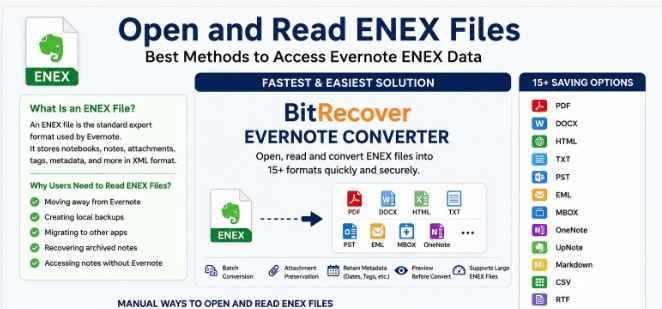
Photo Credit: BitRecover
Read Evernote ENEX Files
Open and Read ENEX Files quickly and safely with a professional solution like BitRecover Evernote Converter, especially when you need to view, back up, or migrate Evernote data without data loss. While manual methods such as importing the file back into Evernote or opening it in a text editor can work in certain situations, they often come with limitations. A dedicated converter gives you direct access to ENEX content and allows conversion into multiple formats for long-term access and backup. Let's break down the available options and see which method makes the most sense.
What Is an ENEX File?
An ENEX file is the standard export format used by Evernote. It stores notebooks, notes, attachments, tags, metadata, creation dates, and other note information in XML format.
When users export their notebooks from Evernote, the platform generates an ENEX file. This file acts as a portable archive that can be imported into Evernote again or transferred to other note-taking applications.
Many users need to read Evernote ENEX file content when:
• Moving away from Evernote
• Creating local backups
• Migrating to OneNote, UpNote, or Outlook
• Recovering archived notes
• Accessing notes without an active Evernote account
The challenge is that ENEX files are not designed for direct viewing, which is why choosing the right method matters.
Fastest Way to Open and Read ENEX Files
If your goal is to view notes immediately and preserve formatting, BitRecover Evernote Converter is often the most practical choice.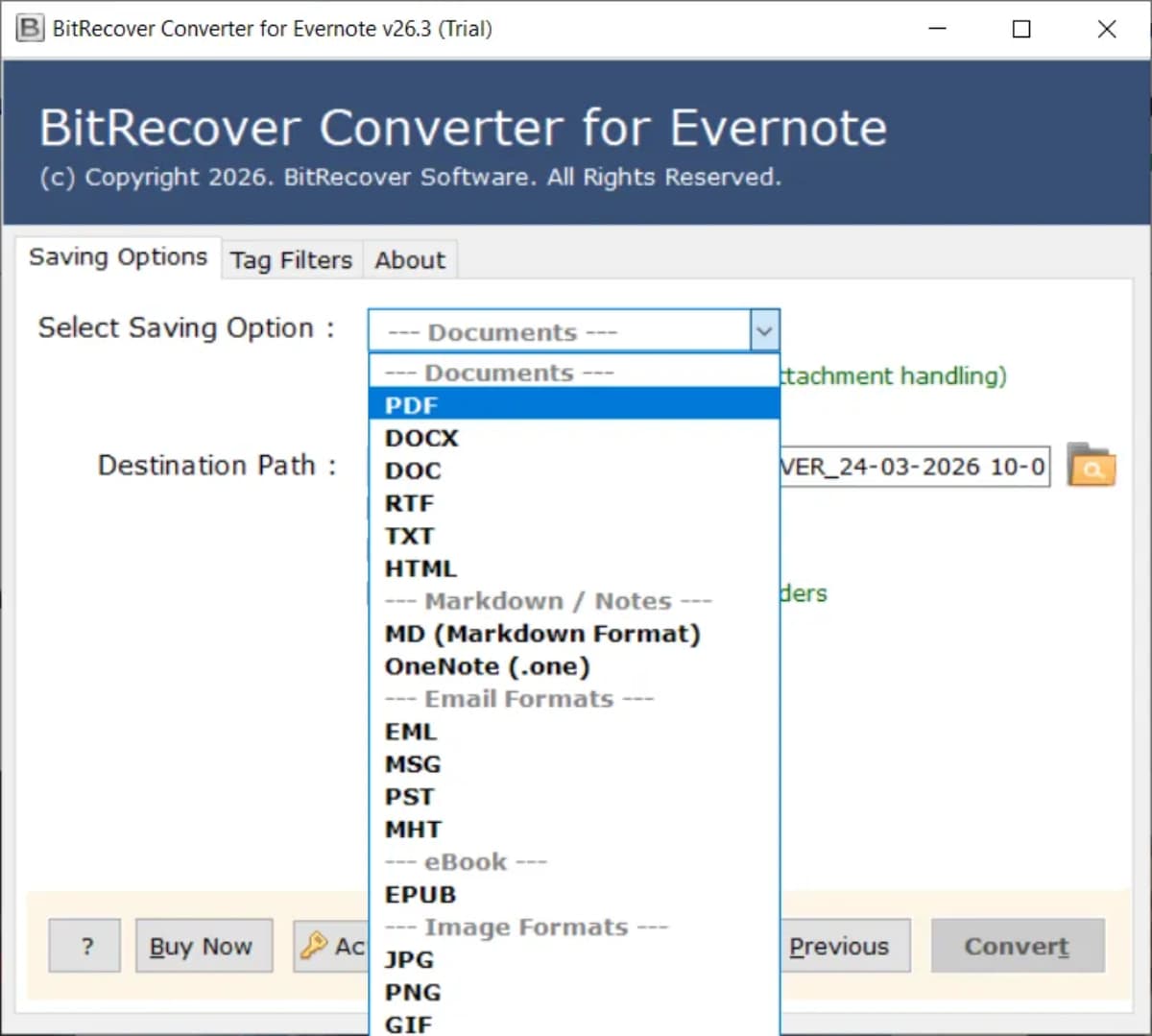
The software can load ENEX files directly and convert them into more than 15 saving formats and platforms, including:
• DOCX
• HTML
• TXT
• PST
• EML
• MBOX
• OneNote-compatible formats
• UpNote migration-ready formats
• Markdown
• CSV
• RTF
Instead of dealing with XML code, you can access your notes in a readable format within minutes.
This approach is particularly useful for organizations and professionals managing hundreds or thousands of exported Evernote notes.
How to Read Evernote ENEX File Using BitRecover Evernote Converter
Follow these simple steps:
Step 1: Launch the Software
Install and open BitRecover Evernote Converter on your Windows system.
Step 2: Add ENEX Files
Select the exported Evernote ENEX file or an entire folder containing multiple ENEX files.
Step 3: Preview Data
The software displays the available notes and notebooks before conversion.
Step 4: Choose Output Format
Select your preferred format such as PDF, PST, DOCX, HTML, or another supported option.
Step 5: Start Conversion
Click Convert and access your notes in a readable format.
The process preserves note content, attachments, timestamps, hyperlinks, and notebook structure wherever supported by the destination format.
Key Features That Make BitRecover a Better Choice
Here’s why many users prefer a professional solution over manual methods:
Feature Benefit
15+ Export Options Convert ENEX files into multiple accessible formats
Batch Processing Convert thousands of notes simultaneously
Attachment Preservation Keeps images, documents, and embedded files intact
Metadata Retention Maintains dates, tags, and note properties
No Evernote Dependency Access ENEX files without logging into Evernote
Preview Function Verify notes before conversion
Large File Support Handles enterprise-level ENEX archives
According to Evernote's export structure documentation, ENEX files can contain extensive XML metadata alongside note content. For large archives, manually extracting information becomes time-consuming. A specialized converter simplifies the entire process and reduces the risk of data handling errors.
Manual Ways to Open and Read ENEX Files
If you prefer free methods, here are a few alternatives.
Method 1: Import ENEX into Evernote
This is the official method.
Steps:
1. Open Evernote.
2. Select File > Import.
3. Choose the ENEX file.
4. Wait for notes to import.
5. Read notes within Evernote.
Limitations:
• Requires Evernote installation.
• May require account access.
• Not ideal for backup or migration purposes.
Method 2: Open ENEX Using a Text Editor
Since ENEX files are XML-based, they can be opened with:
• Notepad++
• Visual Studio Code
• Sublime Text
• Standard Notepad
Steps:
1. Right-click the ENEX file.
2. Select Open With.
3. Choose a text editor.
Limitations:
• Displays XML code instead of a user-friendly view.
• Attachments are difficult to access.
• Large files can become difficult to navigate.
Method 3: Import ENEX into Other Note-Taking Apps
Several applications support ENEX imports, including:
• UpNote
• Joplin
• Notion (through migration workflows)
• Some OneNote migration utilities
This can help users access their notes after leaving Evernote.
The downside is that formatting, tags, or attachments may not transfer perfectly depending on the application.
Recent Updates Related to ENEX File Management
The note-taking software market has changed significantly over the last few years. Many users have migrated from Evernote to alternatives such as UpNote, Obsidian, Joplin, and OneNote due to pricing and workflow preferences.
As a result, demand for ENEX conversion tools has grown. Modern migration projects often require exporting notes into formats like Markdown, PDF, PST, and DOCX for better portability and long-term storage.
This trend has made conversion utilities more valuable than simple import-only methods because users often need access to their notes across multiple platforms rather than a single application.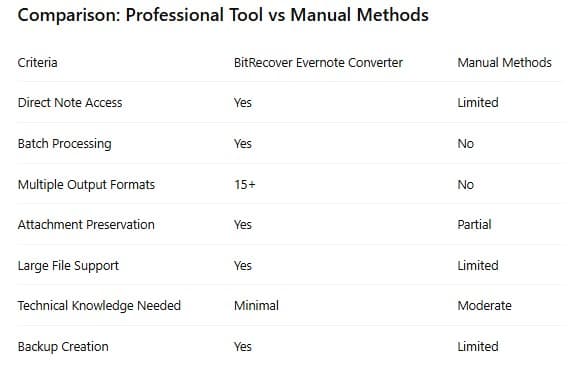
Final Thoughts
Open and Read ENEX Files efficiently by choosing a method that matches your needs. If you only need occasional access, importing the file into Evernote or viewing the XML structure in a text editor may be enough. However, if you're dealing with large exports, backups, migrations, or long-term note preservation, BitRecover Evernote Converter offers a more practical solution. Its support for more than 15 output formats, batch processing capabilities, metadata preservation, and simplified workflow makes it a strong option for users who want reliable access to their Evernote data without unnecessary complications.
- Technology
- Youth
- Internet Access
- Digital Skills
- Global